
← Back to home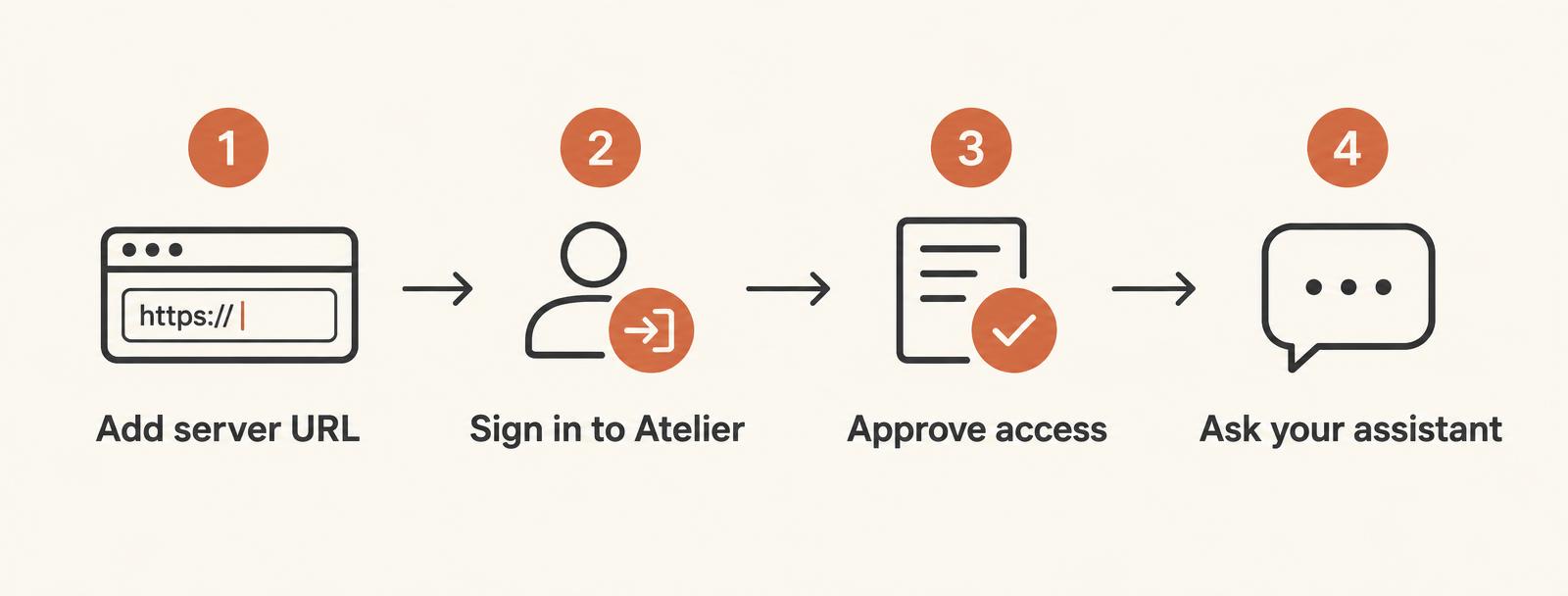
Atelier MCP server
Run your social calendar from Claude, ChatGPT or Cursor. Connect the Atelier MCP server and your AI assistant can read and manage your scheduling: create, schedule, edit and cancel posts, retry failures and see analytics. It acts only as you, after you sign in and approve access, and only in your own workspaces.
New to MCP? See what your AI agent can do with Atelier.
Server URL
https://ateliersocial.io/mcpAuthentication: OAuth 2.1. You sign in with your Atelier account; no API key is needed.
How connecting works
Connect in Claude
- Open Settings → Connectors → Add custom connector.
- Name it "Atelier Social" and paste
https://ateliersocial.io/mcp. - Click Connect. A window opens to sign in to Atelier.
- Review the request and click Approve. You return to Claude, connected.
Connect in ChatGPT
- Open Settings → Apps & Connectors (enable Developer mode if asked) → Create.
- Paste
https://ateliersocial.io/mcpas the server URL and choose OAuth. - Sign in to Atelier in the window that opens and click Approve.
- Enable the Atelier connector in a new chat.
Connect in Cursor
Add this to ~/.cursor/mcp.json (or Settings → MCP → Add server), then click Login next to Atelier and approve in your browser:
{
  "mcpServers": {
    "atelier-social": { "url": "https://ateliersocial.io/mcp" }
  }
}
Available tools
list_workspaces— List the workspaces (brands) you belong to.list_social_accounts— List the connected social channels in a workspace.list_channels— List the channels you can post to in a workspace (demo channels are marked).list_posts— List posts with each channel's status, filtered by status and date range.create_post— Save a draft, schedule a post for a time in your timezone, or publish now. Your posting days and daily limits are respected, and the assistant is told the next free slot if a day is full.update_post— Change the caption, media, channels or time of a draft or scheduled post.delete_post— Delete a post that hasn't gone live anywhere yet.retry_failed_post— Retry a failed post on the channels that didn't publish. Channels that are already live are never re-sent.get_post_analytics— Likes, comments, shares, reach, impressions and more for a published post, per channel.
Example prompts
- “Which Atelier workspaces do I have access to?”
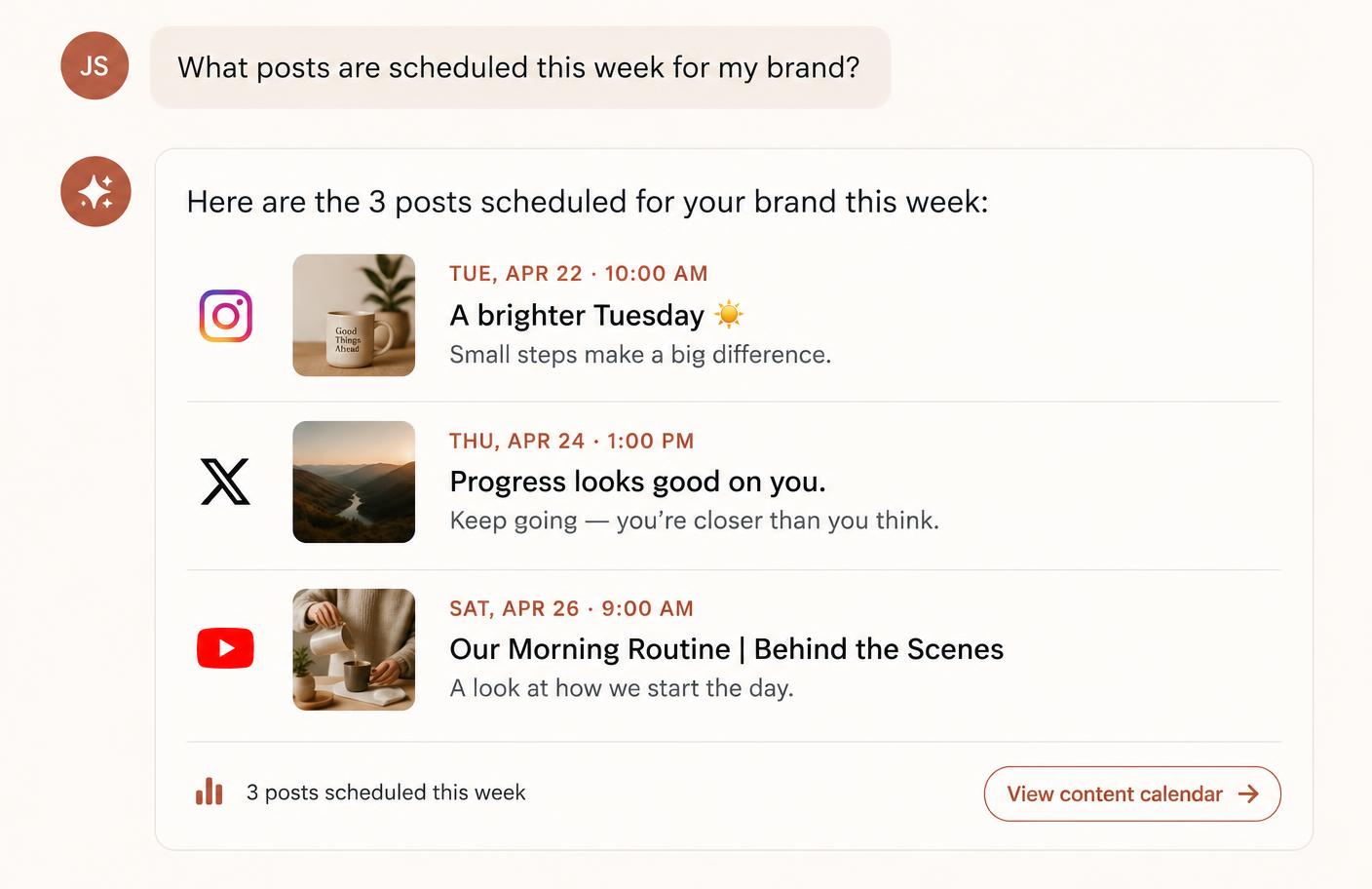
- “What posts are scheduled this week for my brand?”
- “Show me any failed posts in my AppBuild workspace.”
- “Which social accounts are connected to my workspace?”
- “Schedule this caption with this image on Instagram and Facebook for Thursday 9:30am.”
- “Retry my failed posts from yesterday.”
- “How did last week's published posts perform?”
Permissions and security
- The assistant can create, schedule, edit, publish, retry and delete posts, but only in workspaces you belong to. Posts that are already live can't be edited or deleted through the assistant.
- Publishing uses the same checks as the app: video conversion to MP4, your posting days and daily limits.
- Media must be public https links (for example your Airtable or Atelier storage links).
- To prevent runaway assistants, each person is limited to 60 reads, 20 changes and 5 publishes or retries per minute.
- The assistant sees only the workspaces you belong to, with the same permissions you have in Atelier. Hidden channels are left out.
- Sign-in uses OAuth; your password is never shared with the assistant, and Atelier never sees your assistant's data.
- Social network tokens are never returned to the assistant.
- Revoke access at any time by removing the connector in your assistant.
Need help? Visit Support.